How to Track Containers on iPhone: Step-by-Step Guide
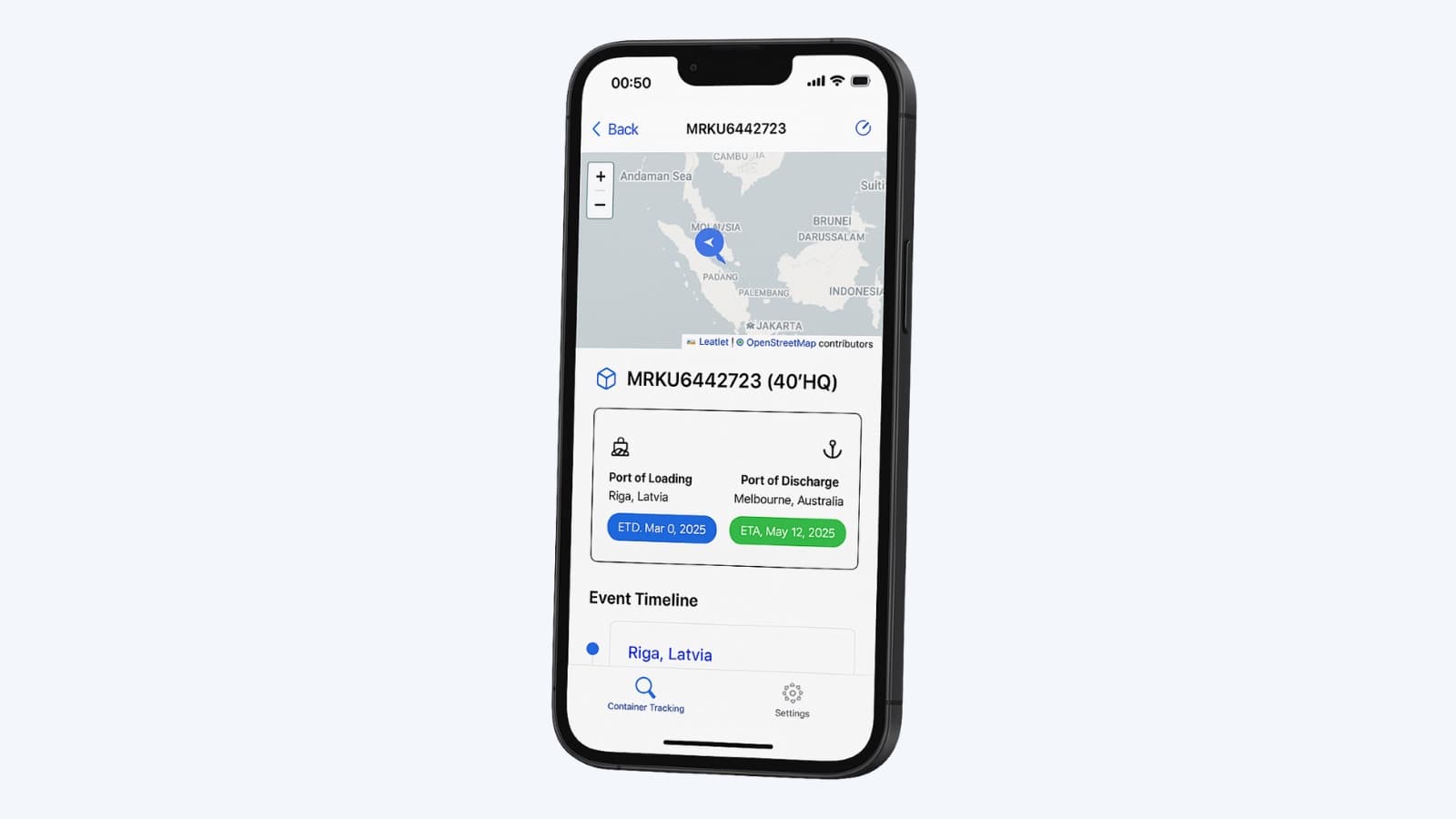
Checking on a shipment shouldn't mean opening a laptop, finding the right shipping line's website and pasting in a container number. With the right app, you can track containers on your iPhone in a few seconds: see where your container is on a map, when it will arrive, and every port it stops at along the way.
This guide walks you through tracking a shipping container on iPhone using the Container Tracking App, and covers where to find your container number, which shipping lines are supported and what to do if a search comes back empty.
What You Need Before You Start
To track a container on your iPhone you need two things:
- An iPhone running iOS 15.1 or later. The app also works on iPad.
- One tracking number for your shipment: a container number or a booking ID.
A container number is the most reliable option. Every shipping container has a unique 11-character code made of 4 letters followed by 7 digits, for example MSCU1234567. The first three letters identify the owner, usually the shipping line, and the fourth letter is almost always U.
Where to find your container number
- On your Bill of Lading or sea waybill
- In the booking confirmation or shipping documents from your freight forwarder
- On the arrival notice sent before the container reaches port
- Painted on the container doors and sides, if you have access to the container
How to Track a Container on iPhone in 4 Steps
Step 1: Download the Container Tracking App
Open the App Store on your iPhone and search for "Container Tracking App", or download it directly from the App Store. The app is free to download.
Step 2: Enter your container number or booking ID
Open the app, tap Container Tracking and type or paste your number into the search field, then tap Search.
Step 3: Let the app detect the shipping line
You don't need to know or choose the carrier. The app auto-detects the shipping line from your number, so the same search works whether your cargo is moving with Maersk, MSC, CMA CGM or any other supported carrier.
Step 4: View live location, ETA and port stops
Within seconds you'll see your shipment's details:
- Live location on a map, showing where your container is right now
- Port of Loading and Port of Discharge, with departure and arrival dates
- Estimated Time of Arrival (ETA), calculated using AI and hundreds of data points so you can plan ahead
- Event timeline of every milestone, from gate-in at origin to discharge at destination
- Upcoming port stops and transhipments along the route
That's it. You can come back any time to check the latest status, and track multiple containers from different shipping lines in the same app.
Supported Shipping Lines
The Container Tracking App supports the world's largest ocean carriers, so one iPhone app covers almost every container you're likely to ship:
- Maersk
- MSC (Mediterranean Shipping Company)
- CMA CGM
- COSCO
- Hapag-Lloyd
- ONE (Ocean Network Express)
- Evergreen
- Yang Ming
- HMM
- ZIM
- PIL (Pacific International Lines)
- Matson
Not sure which carrier a container belongs to? The four-letter prefix tells you. For example, MSKU is a Maersk container and MSCU belongs to MSC. See the full list of supported carriers and container prefixes.
Why Use an App Instead of Carrier Websites?
Every shipping line has its own tracking page, but using them on a phone is slow, especially if you're shipping with more than one carrier.
- One app for every carrier. No need to look up which shipping line owns a container or bookmark a dozen different websites.
- Built for iPhone. Carrier websites are often designed for desktop. The app gives you a clean, mobile-first view with a map, ETA and timeline on one screen.
- Faster checks. Search once and return to your shipment in a tap, instead of re-entering numbers on a website every time.
- All your shipments in one place. Importers, exporters and freight forwarders can keep an eye on containers across multiple carriers side by side.
Troubleshooting: Container Not Found?
If your search doesn't return results, check these common causes:
- Typos. Make sure you entered 4 letters and 7 digits, and that you haven't mixed up the letter
Owith the number0, orIwith1. - Very new bookings. Shipping lines often only publish tracking data once the container has been gated in or loaded. If you've just booked, try again in a day or two.
- Try another number. If a container number doesn't work, search with your booking ID instead.
- Check the carrier. Make sure the shipment is moving with one of the supported shipping lines.
Frequently Asked Questions
Can I track a shipping container on my iPhone for free?
The Container Tracking App is free to download, and you can start tracking with a free trial. Continued tracking requires a subscription.
Does the app work on iPad?
Yes. The Container Tracking App runs on both iPhone and iPad with iOS 15.1 or later.
Can I track a container by booking number?
Yes. You can search by container number or by the booking ID from your shipping line. Tracking by Bill of Lading (BL) number isn't supported, but your container number is printed on the Bill of Lading, so you can use that instead.
How accurate is the container ETA?
The app uses AI and hundreds of data points to estimate when your container will arrive, and updates as the shipping line publishes new events. ETAs can still shift because of port congestion, weather or route changes, so check back as the arrival date gets closer.
Can I track multiple containers at once?
Yes. You can track containers from different shipping lines in the same app, which makes it useful for freight forwarders and businesses managing several shipments.
Start Tracking Your Containers on iPhone
Tracking a container on your iPhone takes less than a minute: download the app, enter your number and get live location, ETA and port stops for your cargo, whichever shipping line is carrying it.
Download the Container Tracking App on the App Store and track your first container today.